

Team Management
Collaborate with developers, designers, QA, and product managers on the visual changes waiting for a decision.
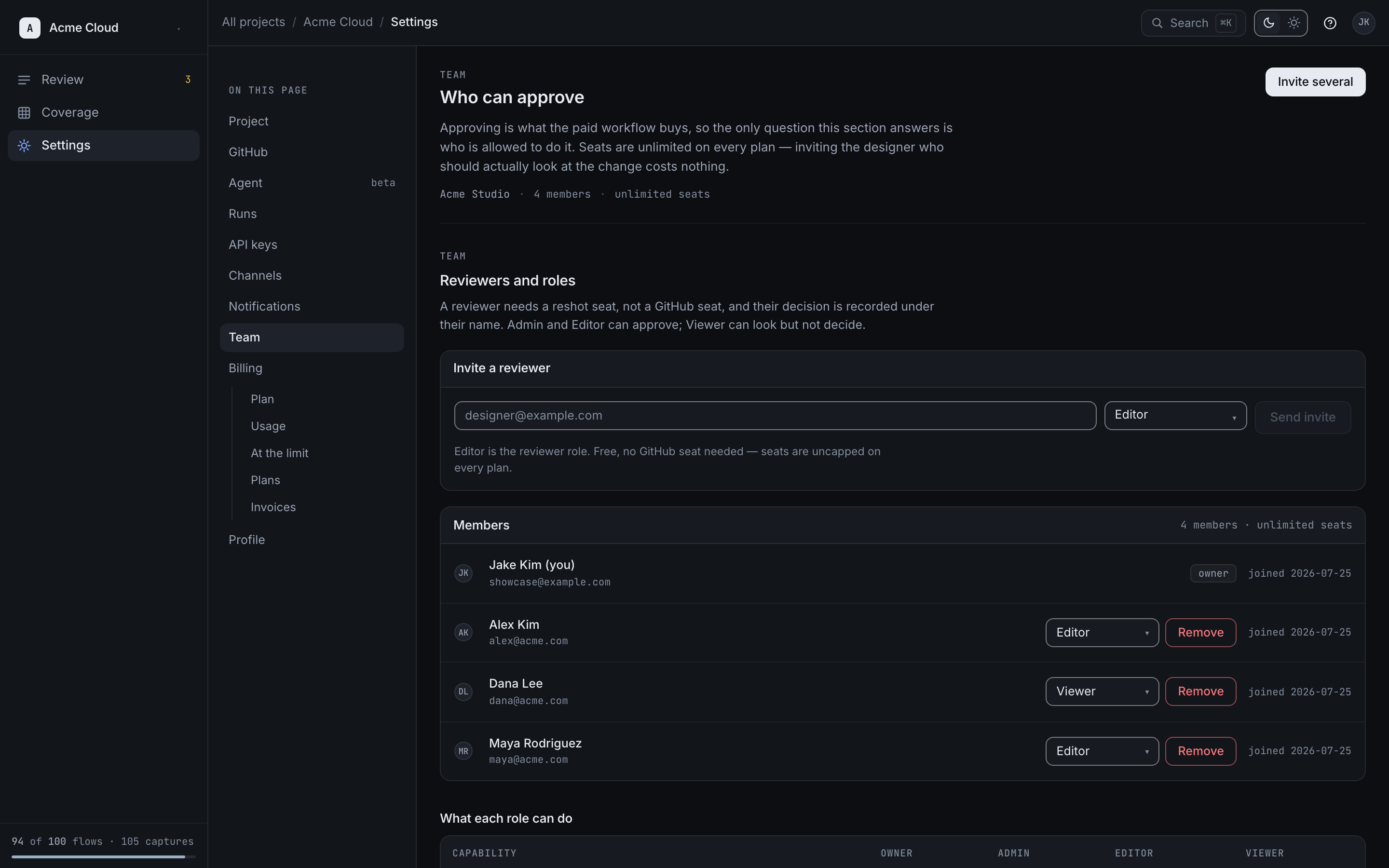
Roles & Permissions
Every role except Viewer can approve or reject a visual change. Editor is the default for a new invitation and is the reviewer role.
| Role | Capabilities | Best For |
|---|---|---|
| Owner | Full access including billing and project deletion | Engineering Managers, CTOs |
| Admin | Approve/reject visuals, publish assets, manage team and billing | Team leads, Engineering Managers |
| Editor | Publish assets, approve/reject visuals, edit scenarios | Developers, Designers, PMs |
| Viewer | Read-only access to dashboard, history, and assets | Stakeholders, QA, Auditors |
Permission Matrix
| Action | Owner | Admin | Editor | Viewer |
|---|---|---|---|---|
| View dashboard | ✓ | ✓ | ✓ | ✓ |
| View assets | ✓ | ✓ | ✓ | ✓ |
| View current plan & usage | ✓ | ✓ | ✓ | ✓ |
| Publish assets | ✓ | ✓ | ✓ | ✗ |
| Approve/reject visuals | ✓ | ✓ | ✓ | ✗ |
| Manage team | ✓ | ✓ | ✗ | ✗ |
| Manage API keys | ✓ | ✓ | ✓ | ✗ |
| Access billing | ✓ | ✓ | ✗ | ✗ |
| Delete project | ✓ | ✗ | ✗ | ✗ |
An API key is a developer credential rather than a billing artifact, so every role except
Viewer can create, label, and revoke one — the same bar reshot auth applies when it issues
a key during CLI setup. Viewer is refused, because a key carries no role of its own and would
otherwise hand a read-only member publish access.
Billing splits in two. Which plan the workspace is on and how much of it is used — active flows, captures, storage, seats — is visible to every role, because it is the answer to "why was my publish refused" and every role can hit that limit. The commercial record — invoices, transactions, payment methods, and changing or cancelling the subscription — is Owner and Admin only. Admin is included because a workspace has exactly one Owner and the role cannot be reassigned, so an owner-only bar would leave a workspace unable to fix a failed payment or upgrade the moment that one person is unavailable.
Inviting Members
- Go to Project Settings > Team
- Click Invite Members
- Enter their email address
- Select a role
- Click Send Invitation
They'll receive an email with a secure join link.
Managing Members
Change Role
- Find the member in the Team list
- Click the role dropdown
- Select the new role
Remove Member
- Find the member in the Team list
- Click the Remove button
- Confirm removal
Seats
Every role is free and unlimited on all plans. Reshot does not charge per seat, so inviting a reviewer costs nothing — plans are priced on active flows.
- Approving or rejecting a change is available to every role except Viewer, as shown in the matrix above. Viewer is read-only. No role costs more than any other.
- A reviewer needs a Reshot account, not a GitHub seat. Approval is always attributed to a named person, so there is no anonymous or link-based approval.
Single Sign-On
Enterprise evaluations can cover identity and access requirements as part of rollout planning.
Contact support if your organization needs to review authentication or provisioning requirements before rollout.