

Dashboard Overview
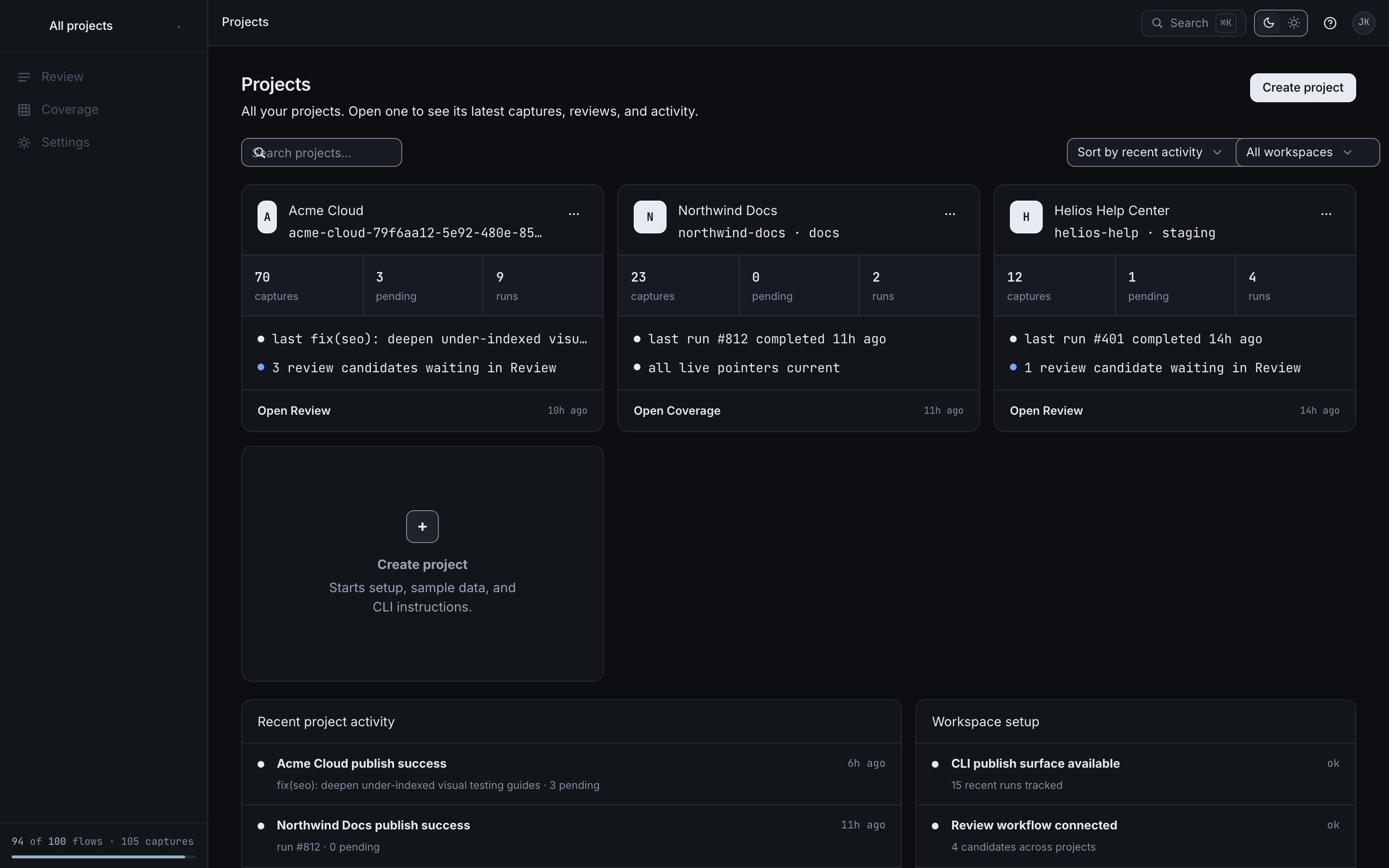
The app has three surfaces: Review decides, Coverage is the evidence behind those decisions, and Settings configures everything else. Opening a project lands you on Review.
Signing in
Visit reshot.dev/login and continue with Google, or request a magic link. Signing in never asks for repository access — GitHub is connected later as an app install.
Main navigation
| Section | Description |
|---|---|
| Review | Candidates awaiting a decision, paired with their baseline |
| Coverage | Flows, contexts, and the approved baseline for each pair |
| Settings | Project config, GitHub, runs, team, billing, and API keys |
Projects overview
/app/projects lists every project you can reach. Each card carries its capture
count, how many captures are pending a decision, and its recent run count, plus
a direct link into whichever surface needs attention. Below the cards sit recent
project activity and workspace setup status.
Opening a project redirects to its Review queue — there is no separate per-project dashboard page.
Review
Review is the decision surface. It groups a publish event's captures by flow and context, and shows each candidate against the baseline it would replace.
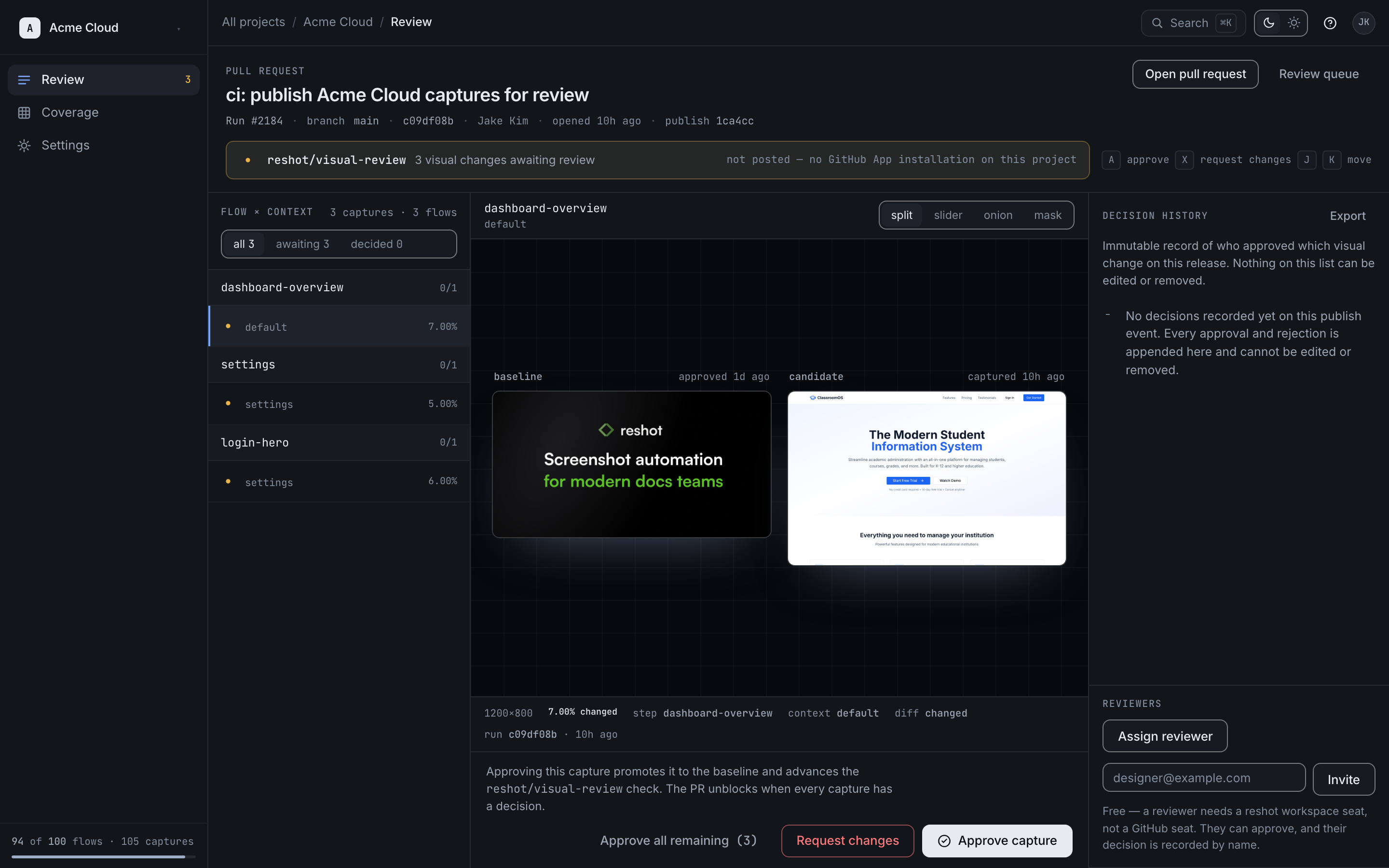
- Comparison modes: split, slider, onion, and mask all read the same baseline/candidate pair
- Decisions: approve a capture, request changes, or approve all remaining
- Decision history: an immutable record of who approved what, exportable, with nothing on the list editable after the fact
- Reviewers: assign a reviewer or invite one by email — a reviewer needs a reshot seat, not a GitHub seat
Approving a capture promotes it to the baseline. When every capture in a publish
event has a decision, the reshot/visual-review check unblocks the pull request.
Coverage
Coverage answers what is being watched and what each flow currently looks like. It has two tabs.
Flows is the coverage matrix: every declared flow × context pair, with the ones that have no capture called out explicitly. A pair that nobody is watching is not an error — it is the state the product exists to make visible.
Baselines lists the approved baseline for each pair. Selecting one opens its detail panel: the Team+ always-newest approved-baseline pointer, the immutable per-version URL available on every plan, and the flow, context, version, approver, age, and size behind it.
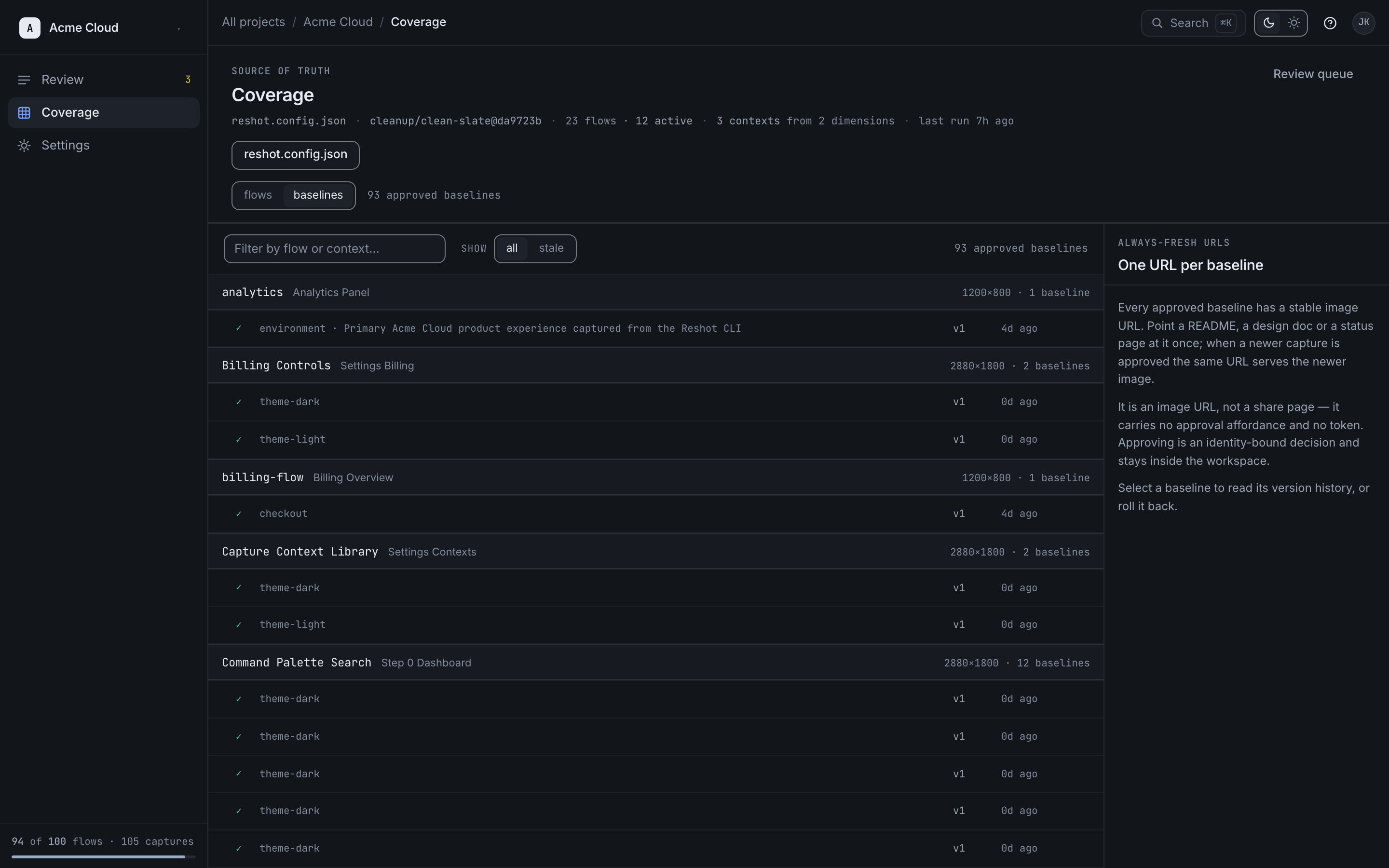
Version history and rollback
Every baseline keeps its full approved history. To roll back:
- Open Coverage → Baselines and select the baseline
- Scroll to Versions in the detail panel — each row is an approved capture
- Click Roll back on the version you want serving
Rolling back re-points the asset URL. It does not erase a decision: the earlier approval stays in the record, and the rollback is appended to it.
Settings
Project settings collect everything that is not a decision: project name and default branch, the GitHub App install, runs, API keys, channels, notifications, team and roles, billing, and your profile.
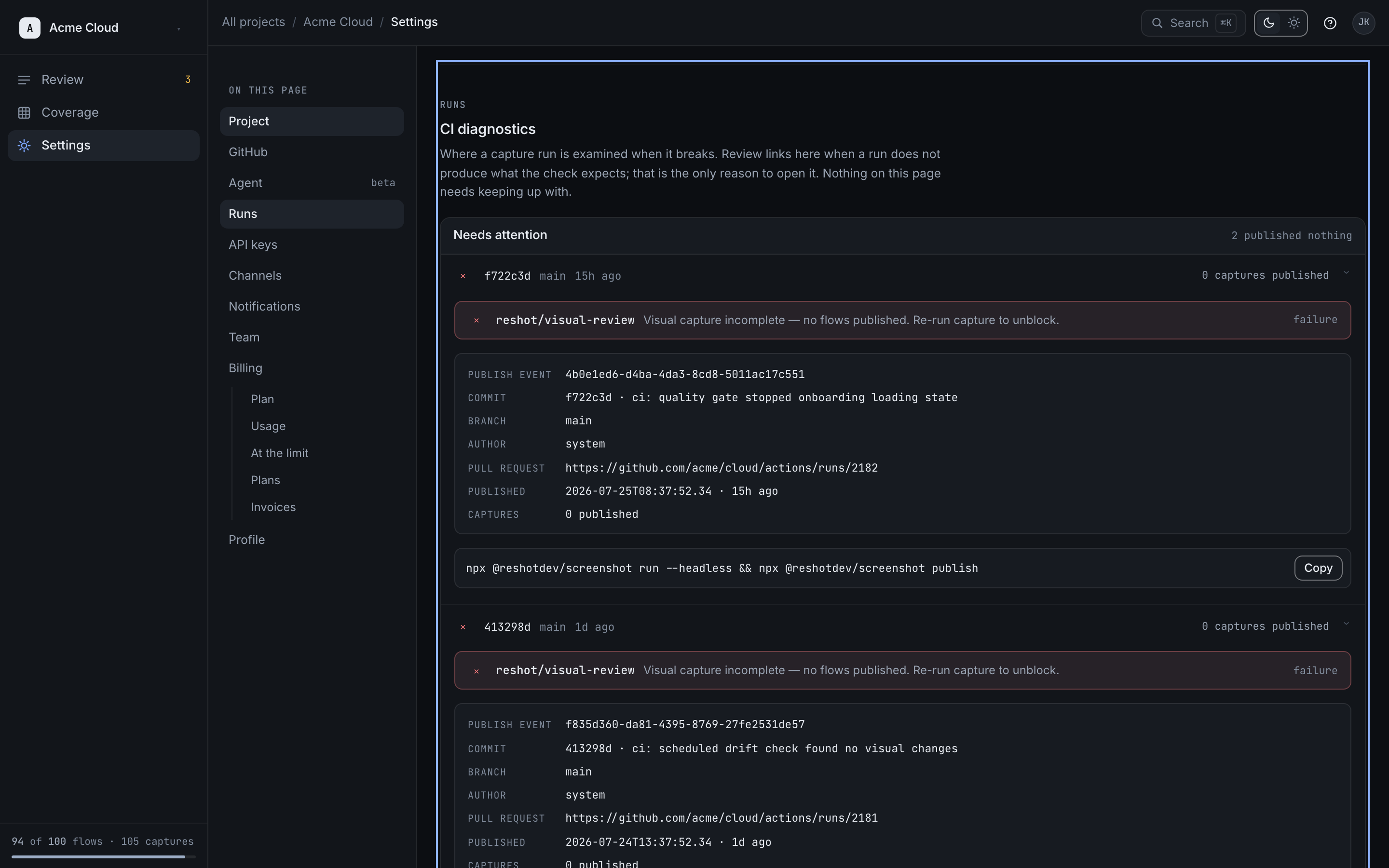
Runs is a diagnostic surface, not a feed to keep up with. Open it when a capture run does not produce what the check expects; otherwise nothing on it needs your attention.
Command palette
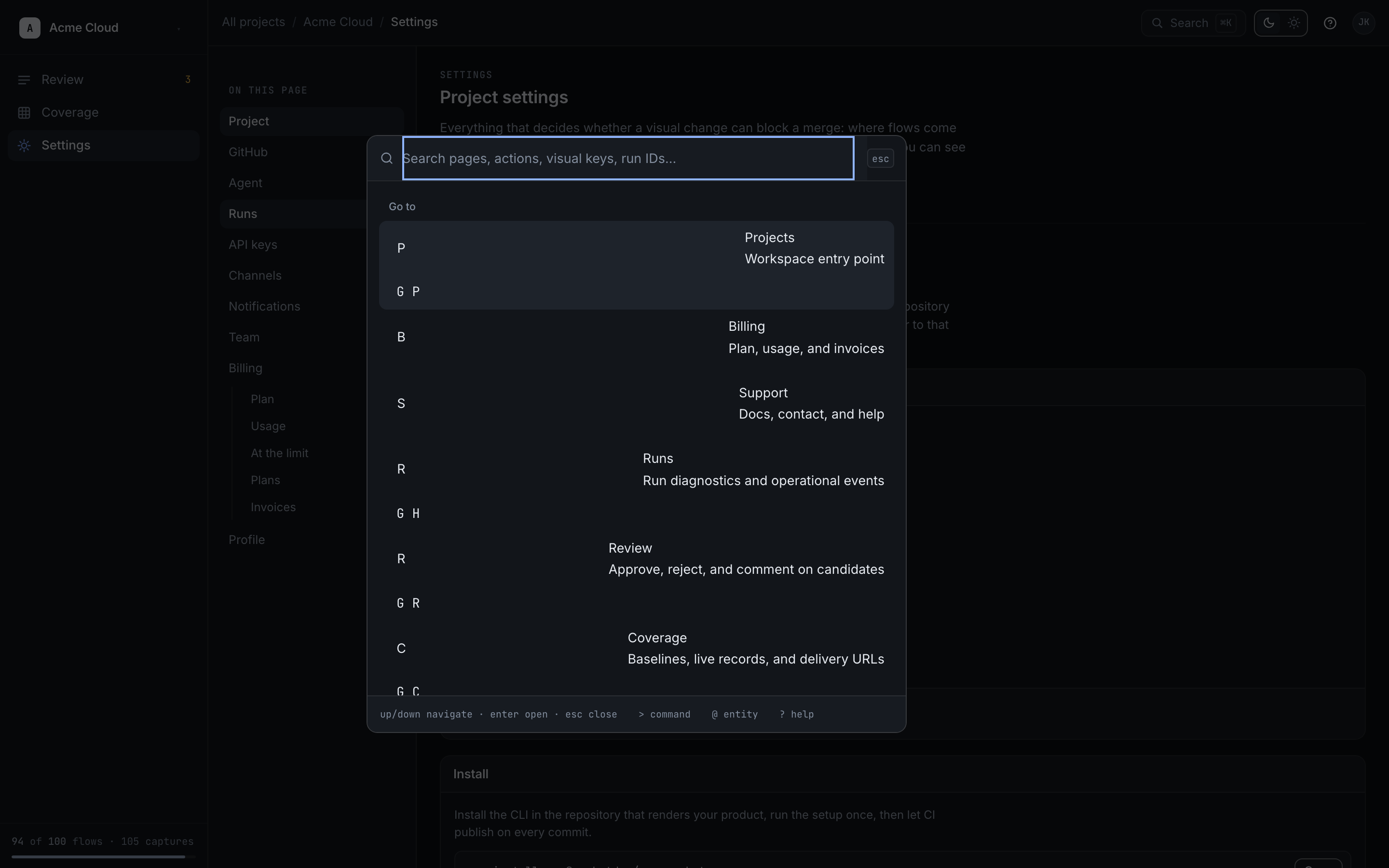
Press ⌘K to search pages, actions, visual keys, and run IDs, or use the
G-prefixed shortcuts shown beside each destination.