

Recording Scenarios
A Scenario represents a user flow or UI state you want to document. Reshot records your interactions and converts them into replayable automation scripts.
Starting a Recording
From the Terminal
Terminal
reshot record "Login Flow"How Recording Works
When you start recording, Reshot:
- Connects to your Chrome debugging session
- Listens for user interactions (clicks, typing, navigation)
- Generates stable selectors for each element
- Logs actions to memory in real-time
Selector Strategy
Reshot prioritizes selectors in this order:
- Data Test IDs:
[data-testid="nav-menu"] - Accessibility Attributes:
role=button[name="Save"] - Text Content:
text="Welcome" - CSS Selectors:
.btn-primary,#submit(fallback)
Recording Controls
During a recording session:
| Action | Key | Description |
|---|---|---|
| Interact | - | Click and type normally; actions are recorded |
| Capture | C | Opens the capture menu (screenshot/video) |
| Quit | Q | Saves the scenario and exits |
Best Practices
Tips for Reliable Recordings
- Use explicit waits: Add
waitForSelectorsteps when content loads dynamically - Avoid timing issues: Use element-based waits instead of fixed delays
- Test your scenarios: Run them multiple times to ensure consistency
- Keep scenarios focused: One scenario per user flow or feature
Editing Recorded Scenarios
After recording, scenarios are saved to reshot.config.json. You can edit them directly:
JSON
{
  "scenarios": [
    {
      "key": "login-flow",
      "name": "Login Flow",
      "url": "/login",
      "steps": [
        {
          "action": "type",
          "selector": "[data-testid='email']",
          "text": "user@example.com"
        },
        {
          "action": "type",
          "selector": "[data-testid='password']",
          "text": "••••••••"
        },
        { "action": "click", "selector": "button[type='submit']" },
        { "action": "waitForSelector", "selector": "[data-testid='dashboard']" },
        { "action": "screenshot", "key": "dashboard-after-login" }
      ]
    }
  ]
}
Multi-Step Visual Workflows
Multi-step scenarios generate a separate visual for each capture step. When embedded in documentation using ReshotSteps, they render as an interactive walkthrough with progress controls and step navigation.
Example: Multi-Step Capture
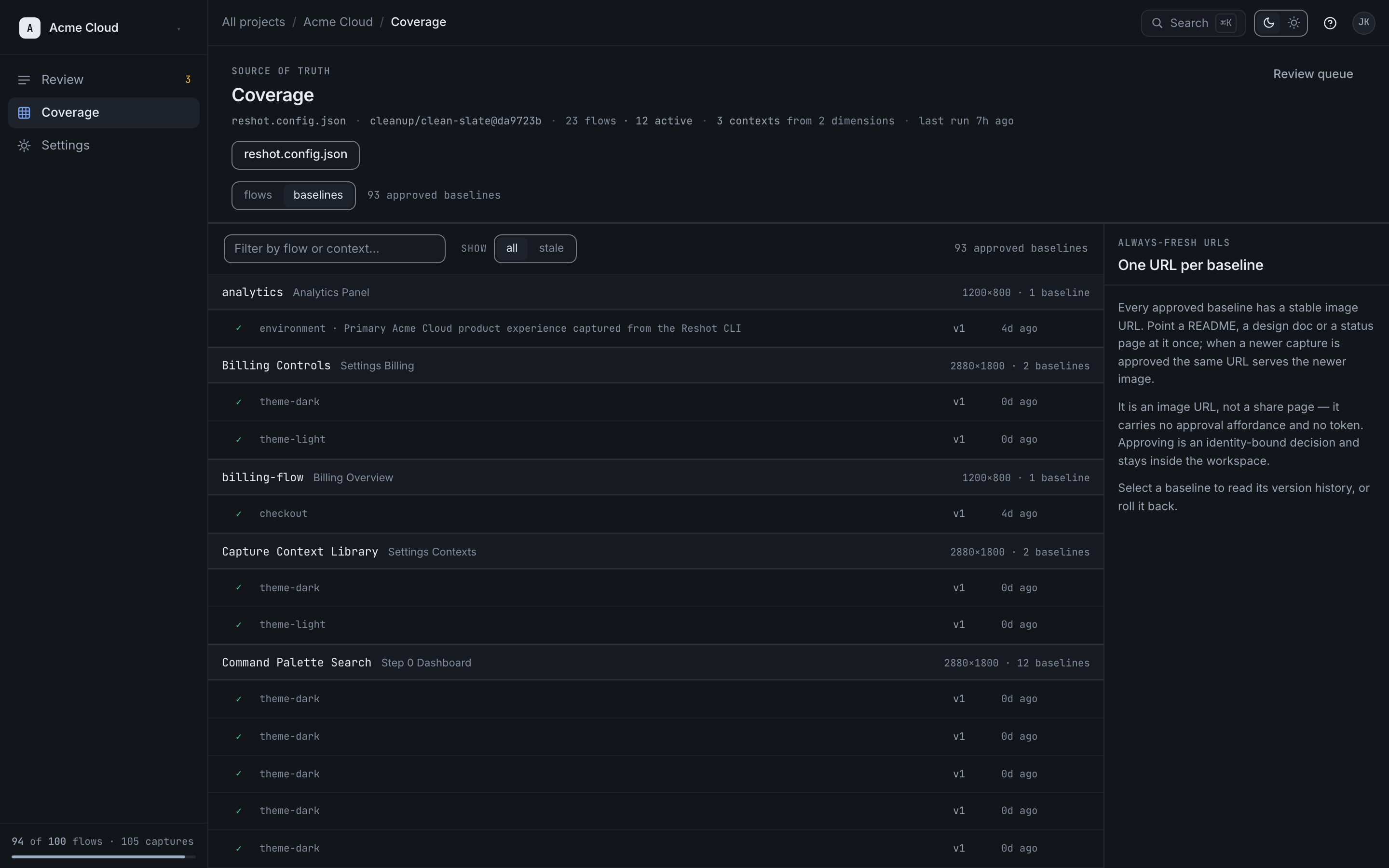
Here's a complete multi-step walkthrough of running a capture from the dashboard:
1Step 1 of 2initial
Choose a baseline
Open Coverage and select the baseline you want to inspect.
Use the arrows or step chips to move through the workflow.1/2